
CS2 NVIDIA Settings 2025

Table of Contents
Looking to optimize your CS2 NVIDIA settings? This comprehensive guide focuses on essential NVIDIA Control Panel adjustments that can maximize your CS2 performance while maintaining crisp visuals.
🧩 A Summary of the Best NVIDIA Settings for CS2
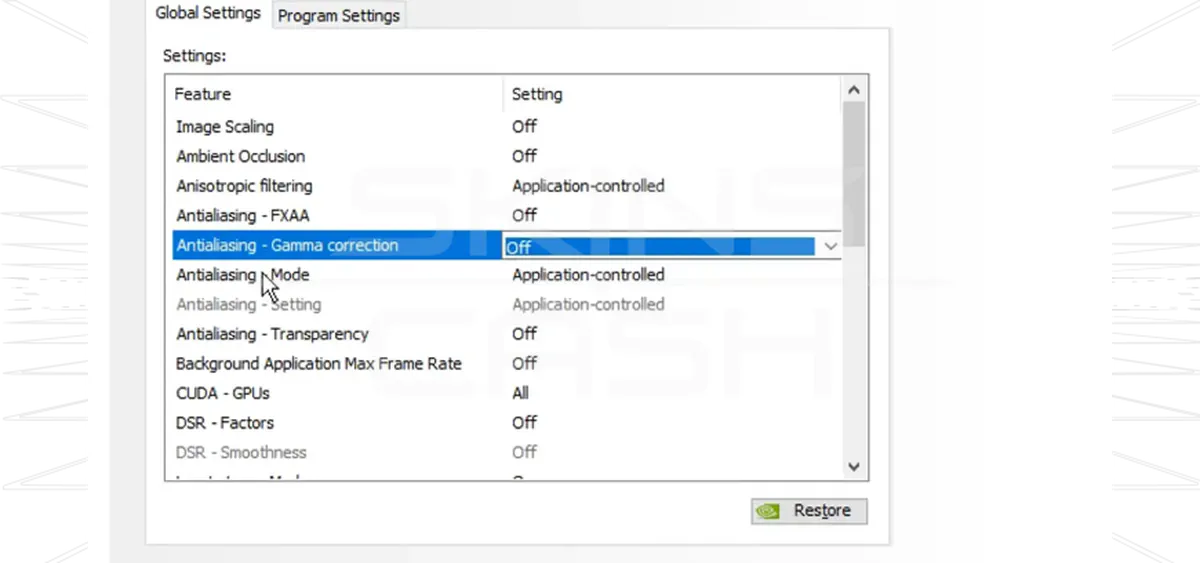
Global Settings
🛠 Optimizing NVIDIA Control Panel Settings for CS2
Start by updating your GPU drivers. Then, access the NVIDIA Control Panel and fine-tune:
- Image Scaling
- Ambient Occlusion
- Anisotropic Filtering
- Antialiasing
Focus on These Key Adjustments
- Disable Vertical Sync
- Activate Boost Player Contrast
- Set Multisampling Anti-Aliasing to CMAA2
🌐 Global Settings vs. Program Settings
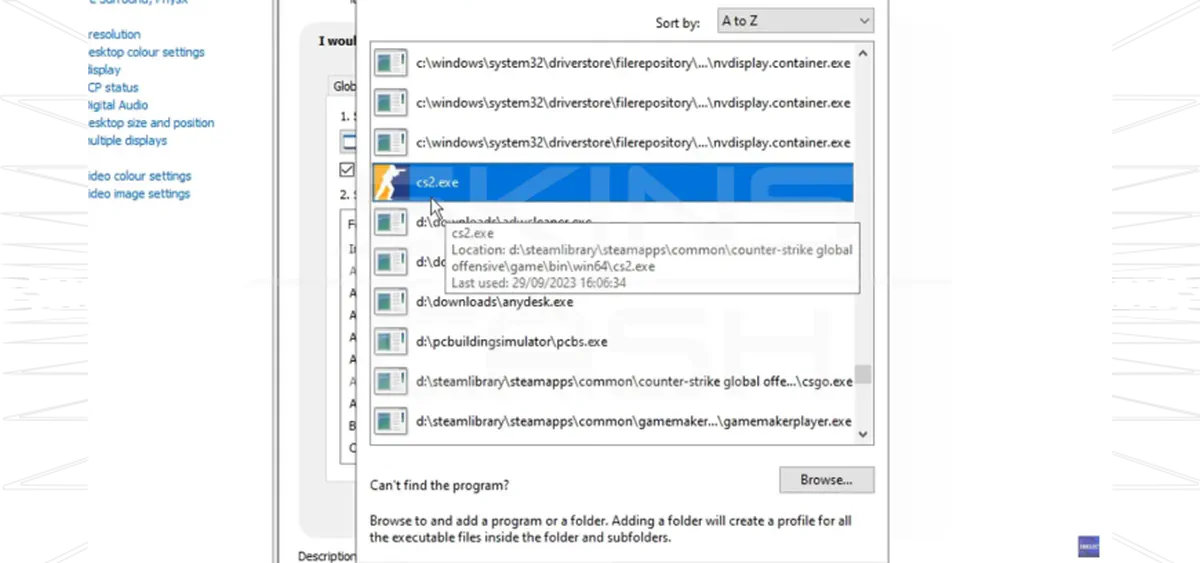
- Global Settings affect all 3D applications.
- Program Settings apply only to selected games like CS2.
To apply CS2-specific tweaks:
- Open NVIDIA Control Panel.
- Go to
Manage 3D settings > Program Settings. - Add
cs2.exeif it’s not already listed.
🎛 How to Find These Settings
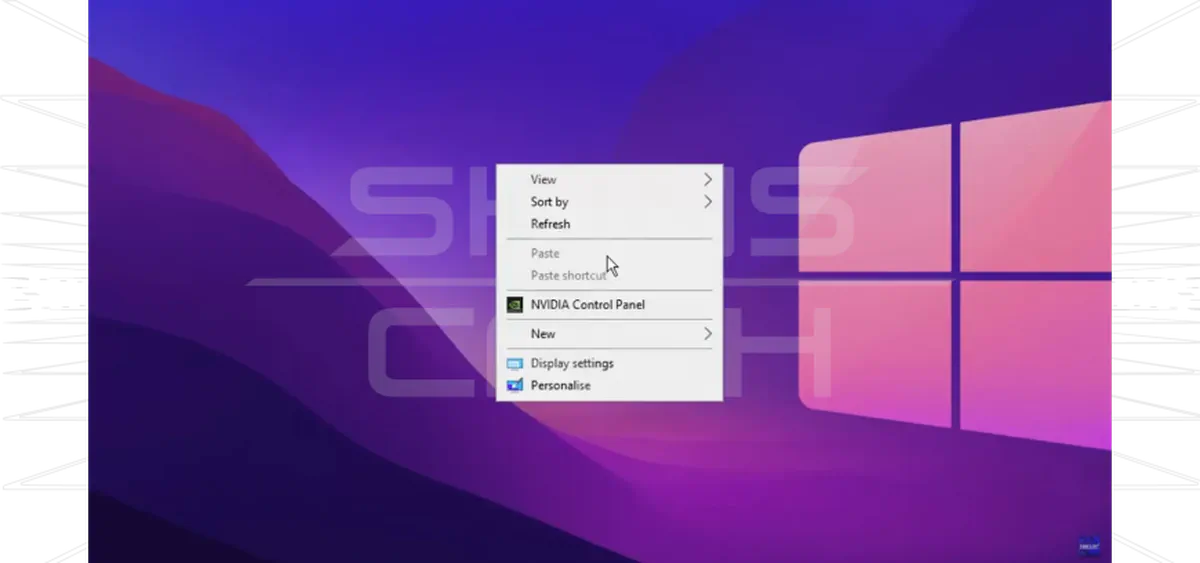
- Open NVIDIA Control Panel.
- Navigate to
Adjust image settings with preview. - Choose “Use the advanced 3D image settings”.
- Click “Take me there”.
🔧 Key NVIDIA Settings to Tweak for CS2
- Power Management Mode → Prefer maximum performance
- Recommended only for CS2, not globally.
- Model/Texture Detail & Global Shadow Quality
- Set to high for improved visuals.
- Texture Filtering Quality → High Performance
🎮 Enhancing Graphics and FPS with Advanced Video Settings
For maximum performance on any system:
- Image Scaling: Off
- Ambient Occlusion: Off
- FXAA: Off
- Anisotropic Filtering: App-controlled
If you have a high-end PC, enabling 4X MSAA or HDR may enhance visuals with minimal FPS loss.

Sell your CS2 skins for real money.
🧪 Multisampling Anti-Aliasing Mode
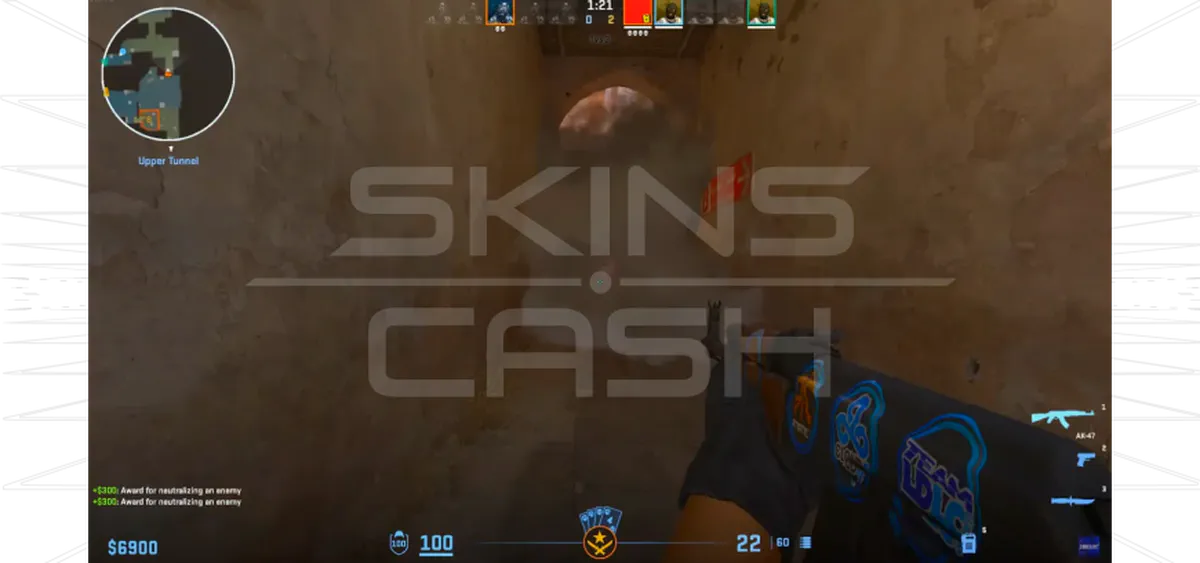
Setting MSAA to 4X can:
- Smooth jagged edges
- Improve clarity
- Slightly reduce FPS (be cautious on low-end PCs)
🌈 High Dynamic Range (HDR) and NVIDIA Reflex Low Latency
- HDR: Better lighting & realism
- Reflex Low Latency: Reduces input lag and improves FPS
- Enable both if your system can handle it.
🕹 In-Game Settings for Maximum Performance
Beyond the NVIDIA panel, tweak these CS2 in-game settings:
- Boost Player Contrast: Improves enemy visibility
- Disable Gamma Correction
- Adjust Negative LOD Bias for better texture sharpness
👁 Boost Player Contrast and Gamma Correction
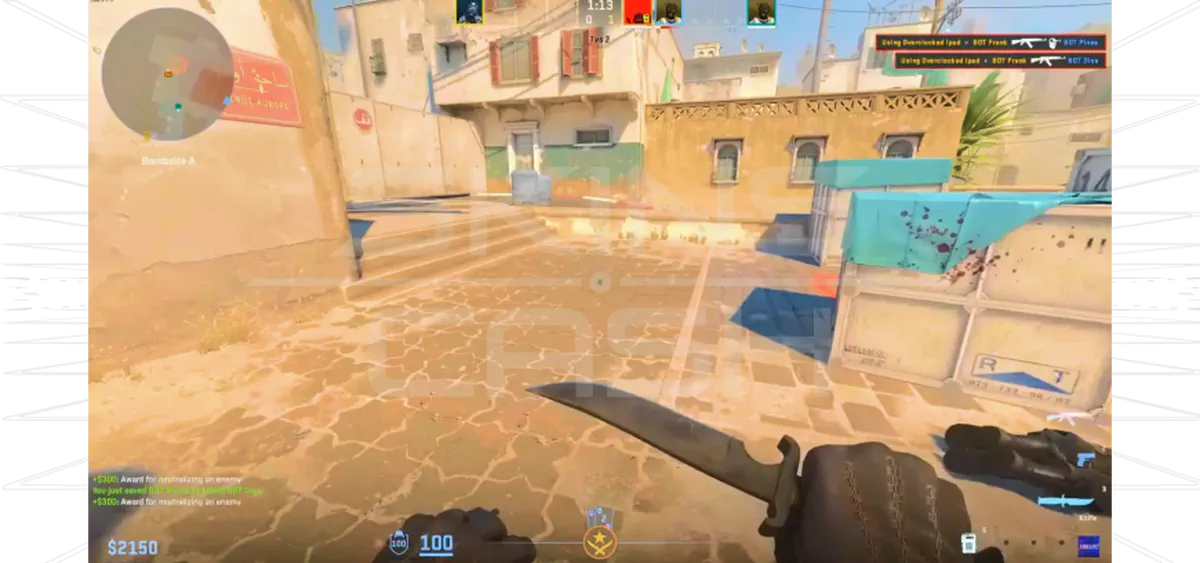
- Boost Player Contrast: Adds outlines for better visibility.
- Gamma Correction: Adjust for contrast clarity.
📌 Tip: Try increasing Digital Vibrance via NVIDIA panel for even clearer visuals.
🌑 Ambient Occlusion and Texture Filtering (Negative LOD)
- Ambient Occlusion: Turn off for higher FPS
- Negative LOD Bias: Use Allow to enhance texture sharpness
🖥 Low-End Systems: Max FPS on Weak Hardware
For older systems, use:
- Resolution: 1024×768, 4:3 ratio
- Multisampling Antialiasing: Low
- Model/Texture Detail: Low
- Shader & Particle Detail: Minimize
🚀 High-End Systems: Tweaks for Powerful Rigs
Unlock the full potential of modern GPUs:
- Boost Player Contrast: On
- V-Sync: Off
- 4X MSAA: On
- Shadow Quality: Max
Additional steps:
- Disable SMT in BIOS
- Turn off Core Parking
- Close unnecessary apps
📊 Displaying FPS in CS2
Monitoring FPS in CS2 provides crucial real-time performance data, helping you optimize your gameplay experience. This metric shows the frame rendering rate, enabling you to assess game smoothness and responsiveness.
Access the FPS counter by entering “cl_showfps 1” in the console. This displays your current frame rate in the upper left screen corner, helping you track performance fluctuations during gameplay.
Summary
Fine-tuning both NVIDIA and in-game settings can dramatically improve your CS2 gaming experience. From optimizing NVIDIA Control Panel configurations to adjusting in-game parameters and monitoring FPS, each element contributes to creating an optimal gaming environment.